QUICK START GUIDE
GET UP & RUNNING FAST
A quick guide to get you started
INTRO
Welcome to ScalperIQ — your edge in real-time order flow. This quick guide will help you install, activate, and start trading with confidence in just a few minutes.
Currently ScalperIQ is available for MotiveWave 6.9.12 & EdgeProX 6.9.12 & NinjaTrader 8
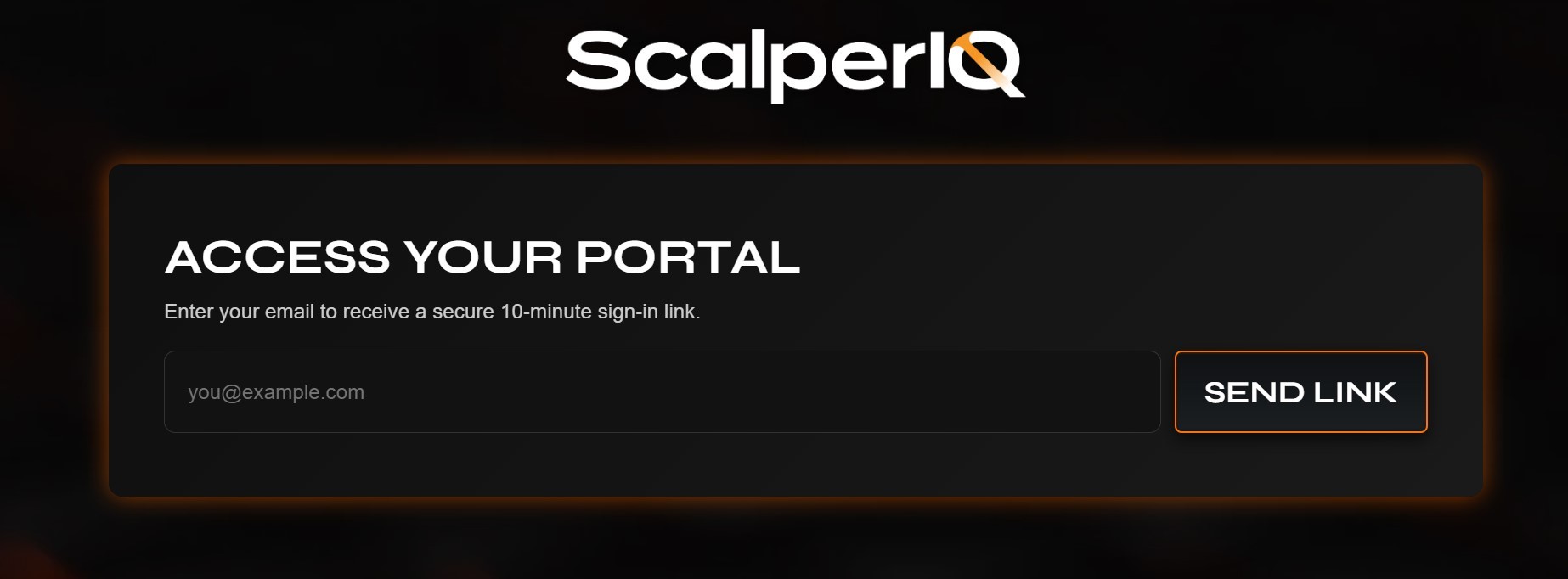
Go to the Portal:
Visit portal.scalperiq.com/portal or click the Portal link on the ScalperIQ website.
Sign In:
Enter your email address and check your inbox for a one-time secure link. Click it to sign in — no password required.Download Files:
From your dashboard, download the ScalperIQ Application for your platform and your license file.For full documentation on your ScalperIQ Portal click here
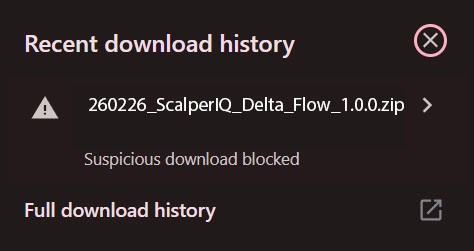
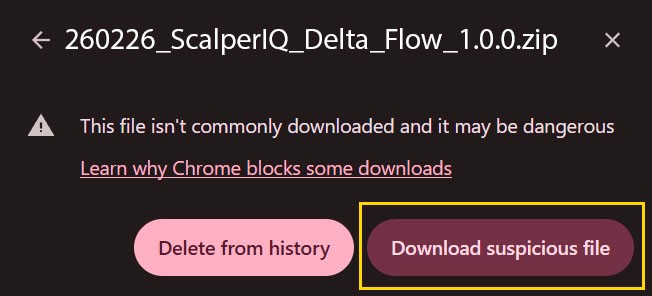
Chrome or other browsers may show a warning that the file “isn’t commonly downloaded and it may be dangerous.” Open your downloads, click the file, and choose “Download unverified file”—this is expected and safe.
MOTIVEWAVE & EDGEPROX INSTALLATION
PREP MOTIVEWAVE & EDGEPROX
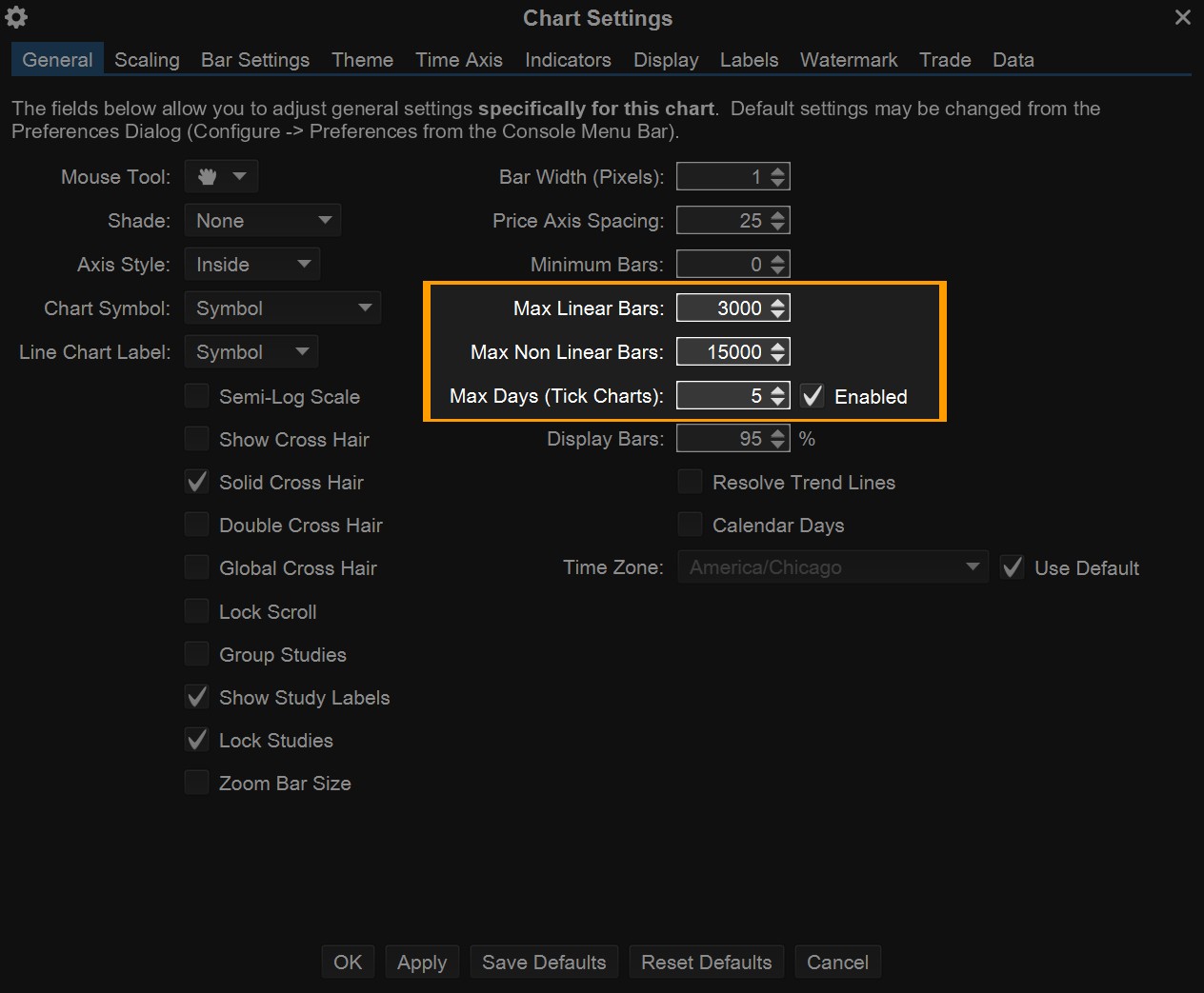
ScalperIQ has the ability to pull a vast amount of historical data. We highly recommend reducing the # of linear and non-linear bars as well as days loaded for the chart you use it on to reduce load times and insure stability.
PLACE YOUR LICENSE FILE & .JAR FILE FOR MAC
Close MotiveWave or EdgeProX
Make sure the platform is completely closed before starting the installation.Locate the Downloaded Files
Open Finder, go to your Downloads folder, and locate both the ScalperIQ.jar and license files.Copy the Files
Right-click (or Control + Click) each file and choose Copy.Navigate to the Extensions Folder
In Finder, open your main drive (Macintosh HD or equivalent), then go to:
Users → [Your Username] → MotiveWave Extensions
or
Users → [Your Username] → EdgeProX ExtensionsPaste the Files
Right-click (or Control + Click) inside the appropriate Extensions folder and select Paste.
You should now see both the.jarfile and the license file inside.Restart the Platform
Reopen MotiveWave or EdgeProX.
ScalperIQ will now appear in your studies list.
PLACE YOUR LICENSE FILE & .JAR FILE FOR WINDOWS
Close MotiveWave or EdgeProX
Make sure the platform is completely closed before starting the installation.Locate the Downloaded Files
Open your Downloads folder and find both the ScalperIQ.jar and license files you downloaded from the portal.Copy the Files
Right-click each file and select Copy from the context menu.Navigate to the Extensions Folder
Open File Explorer and go to:
C:\Users\[Your Username]\MotiveWave Extensions
or
C:\Users\[Your Username]\EdgeProX ExtensionsPaste the Files
Right-click inside the folder and select Paste.
Both the.jarfile and the license file should now appear inside the Extensions folder.Restart the Platform
Reopen MotiveWave or EdgeProX.
ScalperIQ should now appear under your studies list.
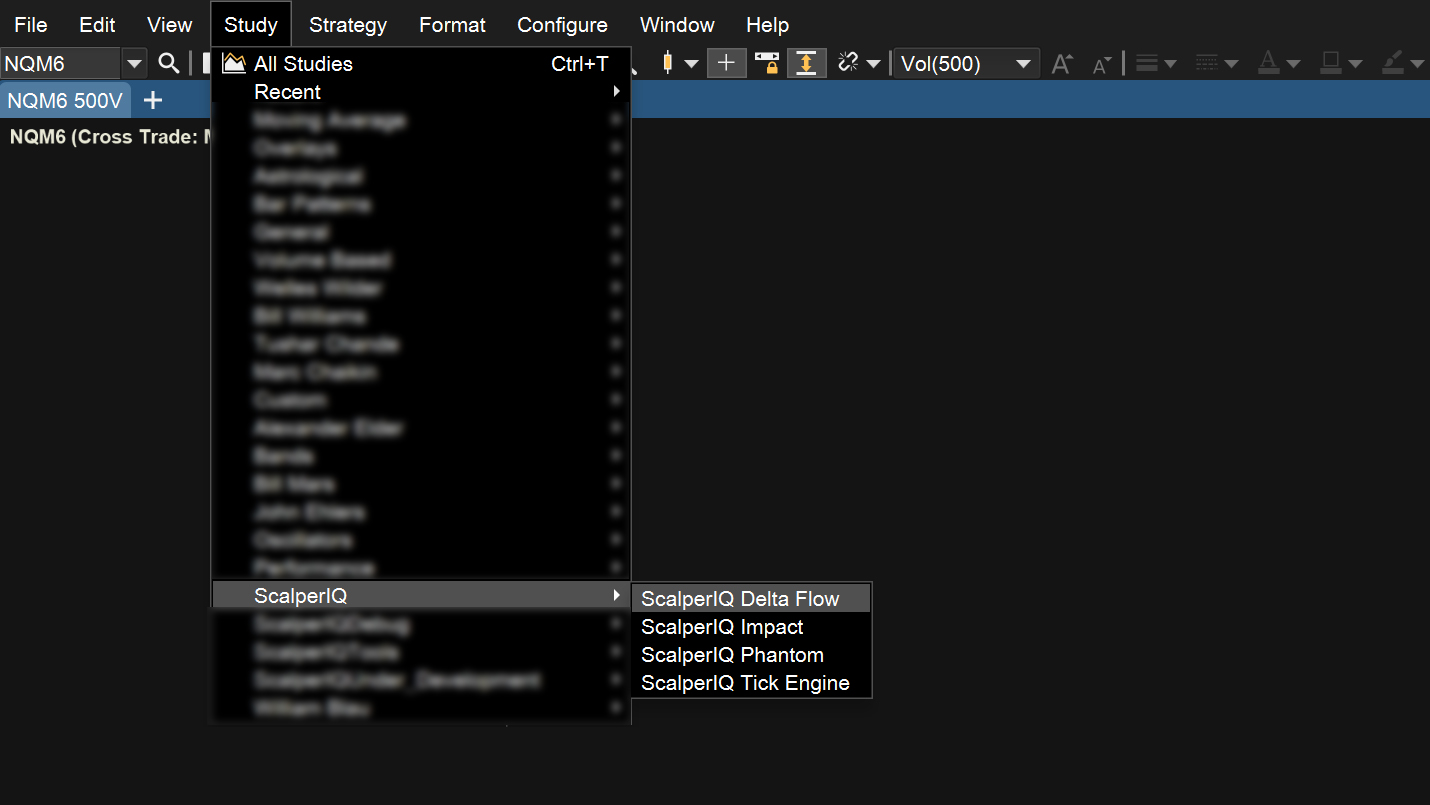
ADD THE STUDY TO YOUR CHART
Open MotiveWave or EdgeProX.
Go to
Study > ScalperIQ > ScalperIQ Delta Flow.
INSTALLATION NINJATRADER 8
Follow the steps below to install ScalperIQ for NinjaTrader
1. Access the Portal:
Visit portal.scalperiq.com/portal and sign in using your email to receive a one-time secure link.
Download Your Files:
Once inside the portal, download:
– Your ScalperIQ license file
– The ScalperIQ_Delta_Flow.zip filePlace your .license file
Move your .license file from your downloads folder to the NinjaTrader 8 folder typically located in C:\Users\"Your User Name"\Documents\NinjaTrader 8
PREP NINJATRADER FOR SCALPERIQ
IMPORTANT. ScalperIQ has the ability to pull a vast amount of historical data. Before installing, we highly recommend the following settings as a starting place to check stability and load times on your system before requesting more historical data.
TICK REPLAY: You must enable tick replay for ScalperIQ to work properly. Follow the steps below to setup NinjaTrader 8 for ScalperIQ.
Set up tick replay:
From the tools menu on the NinjaTrader Control Center select settings.
Next select Market data from the categories menu on the left. Check "Show Tick Replay" to true. Click Apply and then OK to close the Settings window.
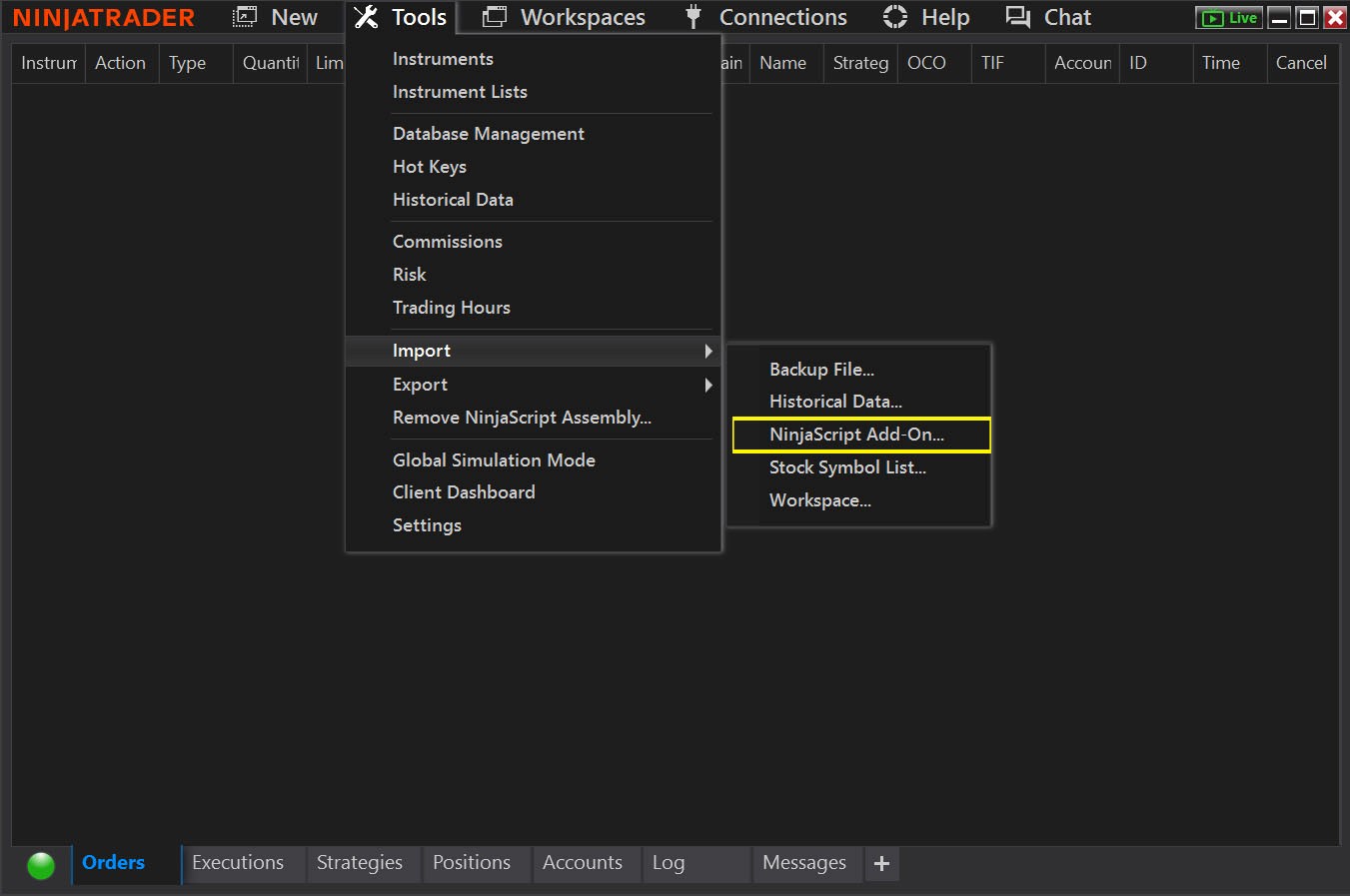
Next import ScalperIQ by navigating to the "Tools" tab on the Control Center window and going to Import/NinjaScript Add-On…Select the ScalperIQ zip file you downloaded from your portal.
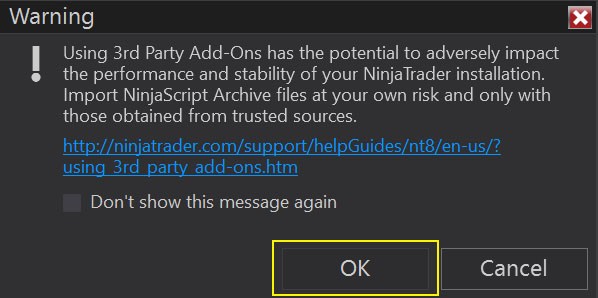
You will receive a generic warning dialog about importing 3rd Party Add-Ons. Click "OK" to continue.
Next open the "New" menu from the Control Center window and click on "Chart" to create a new chart
Select or type an instrument from the "Instrument" drop down menu. Set "Tick Replay" to true by clicking the box. As a starting place we suggest loading 1 week of data by setting "Load data based on" to weeks and "Weeks to load" to 1.
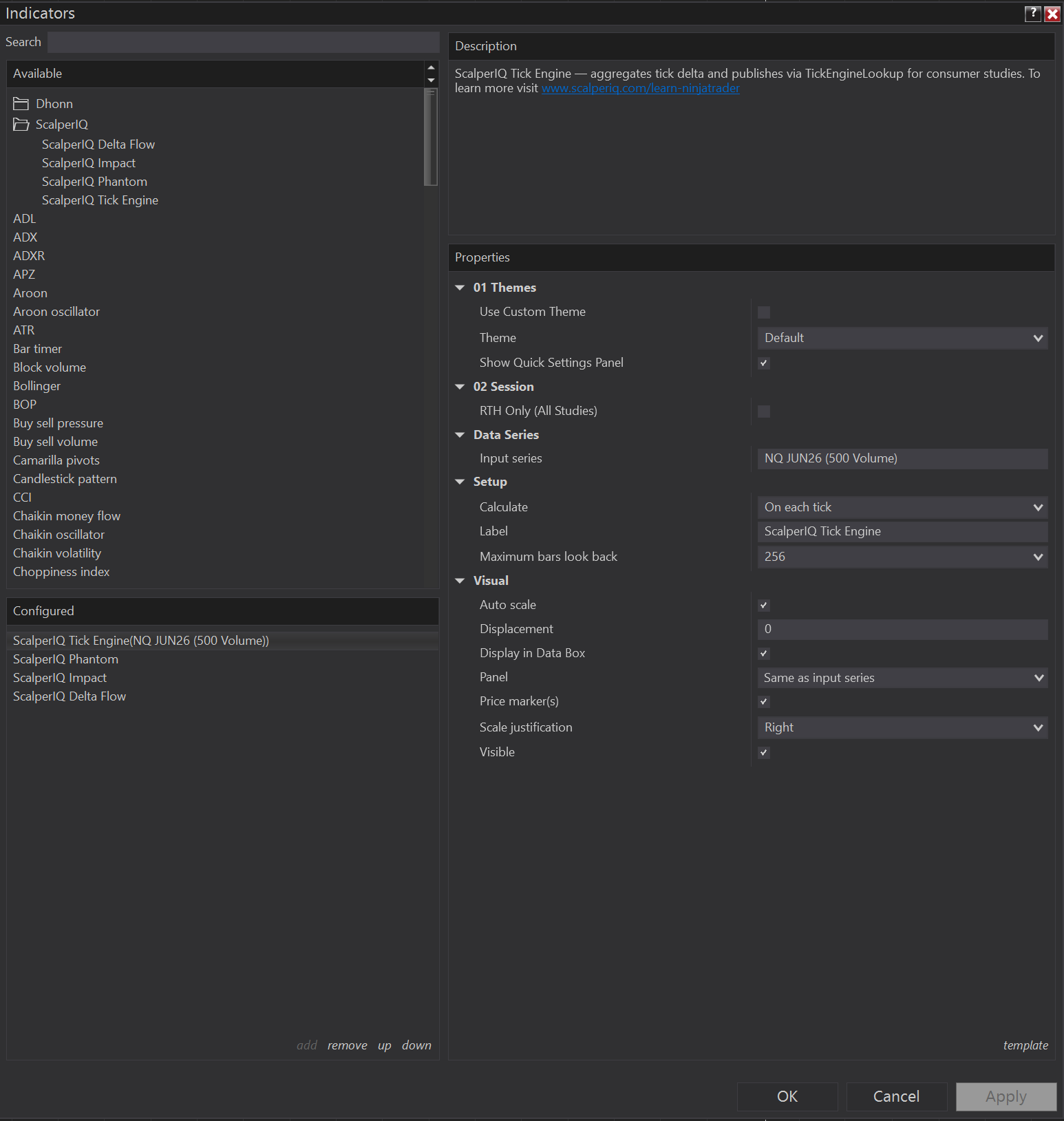
Right click anywhere on the chart to access the "Indicators…" menu.
Locate ScalperIQ & ScalperIQ Delta Flow in the left menu and double click it to add it to the chart indicators. Click Apply and OK. You have successfully loaded ScalperIQ.
RECOMMENDED STARTING TIMEFRAMES
NQ: 500 fixed volume chart for RTH. 100 or 50 fixed volume chart for ETH.
ES: 1000 fixed volume chart for RTH. 250 or 100 fixed volume chart for ETH.
UNDERSTAND WHAT YOU'RE SEEING
Colored Candles: Candles are colored based on their strength. Brighter colors = stronger delta.
Delta Zones: Areas of buyer and seller aggression that may hold for a rebid or reoffer.
Pivots: Areas of control transition.
*For a deeper breakdown of how the signals work, visit the Full Documentation →