Installation

Install NinjaTrader 8

Fresh install or updating to the latest version — everything you need to get ScalperIQ running on NinjaTrader 8.

Installation

Follow the steps below to install ScalperIQ for NinjaTrader 8.

  1. Access the Portal: Visit portal.scalperiq.com/portal and sign in using your email to receive a one-time secure link.
  2. Download Your Files: Once inside the portal, download your ScalperIQ license file and the ScalperIQ zip file.
  3. Place your .license file: Move your .license file from your downloads folder to the NinjaTrader 8 folder typically located in C:\Users\"Your User Name"\Documents\NinjaTrader 8

Chrome or other browsers may show a warning that the file "isn't commonly downloaded and it may be dangerous." Open your downloads, click the file, and choose "Download suspicious file" — this is expected and safe.
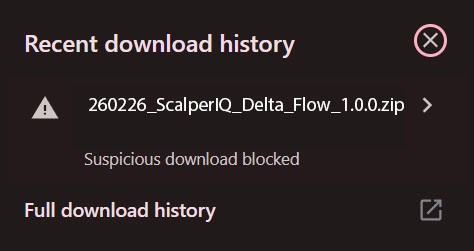
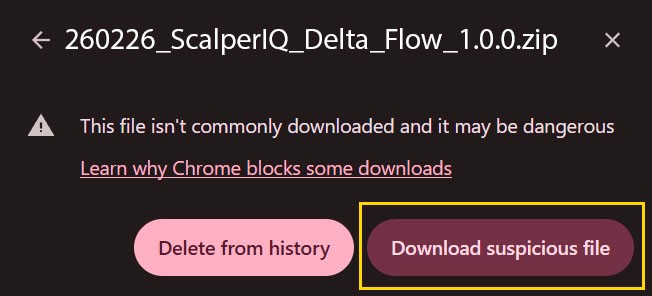
Chrome — Suspicious download blocked Chrome — Download suspicious file

Prep NinjaTrader for ScalperIQ

IMPORTANT. ScalperIQ has the ability to pull a vast amount of historical data. Before installing, we highly recommend the following settings as a starting place to check stability and load times on your system before requesting more historical data.

  1. Import ScalperIQ by navigating to Tools > Import > NinjaScript Add-On on the Control Center and selecting the downloaded zip file.
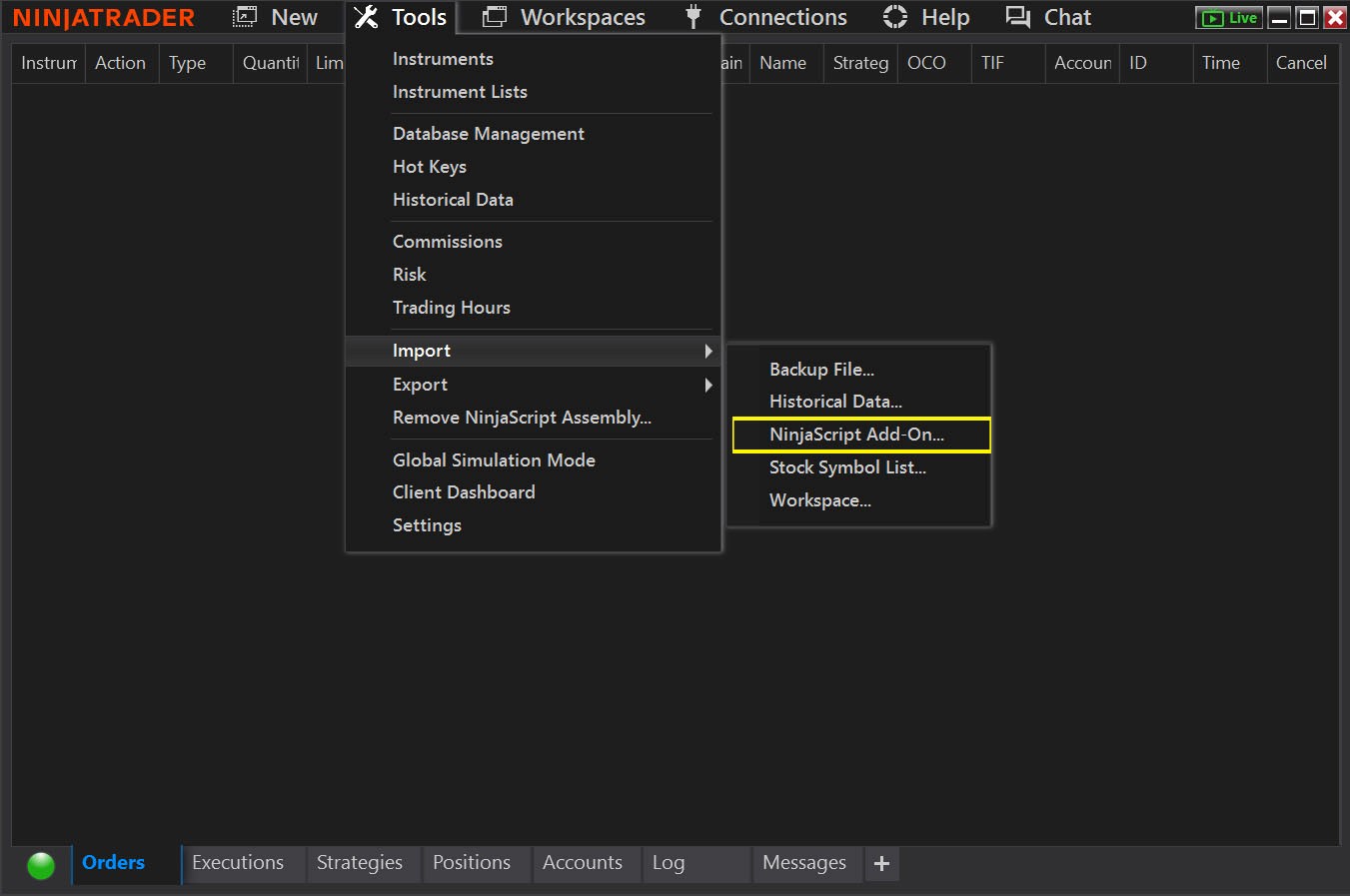
NinjaTrader — Tools > Import > NinjaScript Add-On

A third-party add-on warning appears; click OK to proceed.
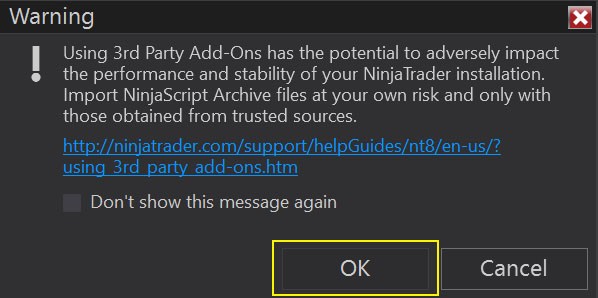
NinjaTrader 3rd Party Add-On warning
  1. Right-click the chart and select Indicators. Locate ScalperIQ Tick Engine in the left menu and double-click to add it. Then add your desired studies — Delta Flow, Phantom, or Impact. Click Apply and OK to complete installation.
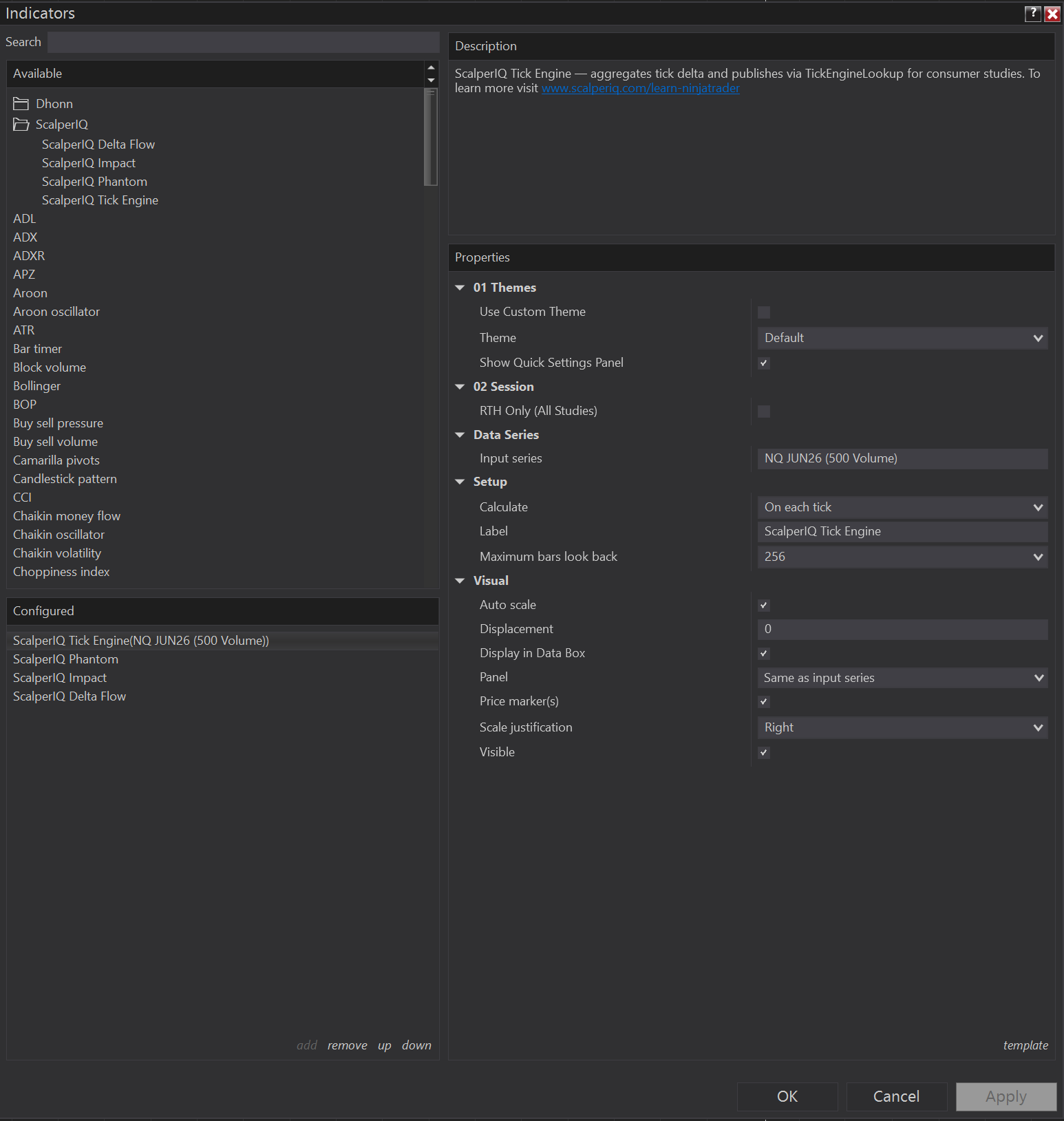
NinjaTrader Indicators panel — ScalperIQ

How To Install Updated Version

IMPORTANT. NinjaTrader caches the loaded ScalperIQ assembly. If you import a new version on top of the old one, NinjaTrader keeps running the cached copy — the update will appear to have no effect even though the import succeeded. You must remove the old assembly and restart NinjaTrader before importing the new version. Don't skip the restart — that's the step that actually clears the cache.

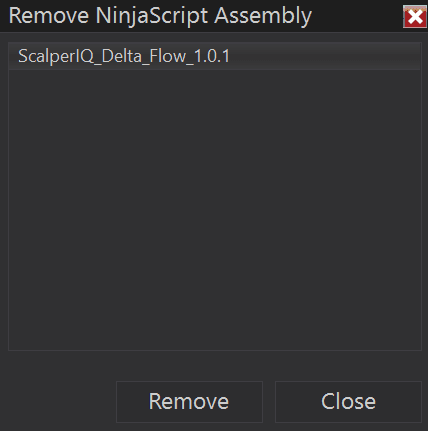
  1. Remove the old assembly. Navigate to Tools > Remove NinjaScript Assembly in the NinjaTrader Control Center. Select the outdated ScalperIQ version, click Remove, and wait for confirmation of successful removal.
Remove NinjaScript assembly Remove confirmation
  1. Restart NinjaTrader. Fully close and reopen NinjaTrader. This is what clears the cached assembly — the new version will not load correctly without it.

  2. Reinstall the new version. Follow the installation steps to import the updated ScalperIQ zip and re-add your studies.

Installation

Follow the steps below to install ScalperIQ for NinjaTrader 8.

  1. Access the Portal: Visit portal.scalperiq.com/portal and sign in using your email to receive a one-time secure link.
  2. Download Your Files: Once inside the portal, download your ScalperIQ license file and the ScalperIQ zip file.
  3. Place your .license file: Move your .license file from your downloads folder to the NinjaTrader 8 folder typically located in C:\Users\"Your User Name"\Documents\NinjaTrader 8

Chrome or other browsers may show a warning that the file "isn't commonly downloaded and it may be dangerous." Open your downloads, click the file, and choose "Download suspicious file" — this is expected and safe.

Chrome — Suspicious download blocked Chrome — Download suspicious file

Prep NinjaTrader for ScalperIQ

IMPORTANT. ScalperIQ has the ability to pull a vast amount of historical data. Before installing, we highly recommend the following settings as a starting place to check stability and load times on your system before requesting more historical data.

  1. Import ScalperIQ by navigating to Tools > Import > NinjaScript Add-On on the Control Center and selecting the downloaded zip file.
NinjaTrader — Tools > Import > NinjaScript Add-On

A third-party add-on warning appears; click OK to proceed.

NinjaTrader 3rd Party Add-On warning
  1. Right-click the chart and select Indicators. Locate ScalperIQ Tick Engine in the left menu and double-click to add it. Then add your desired studies — Delta Flow, Phantom, or Impact. Click Apply and OK to complete installation.
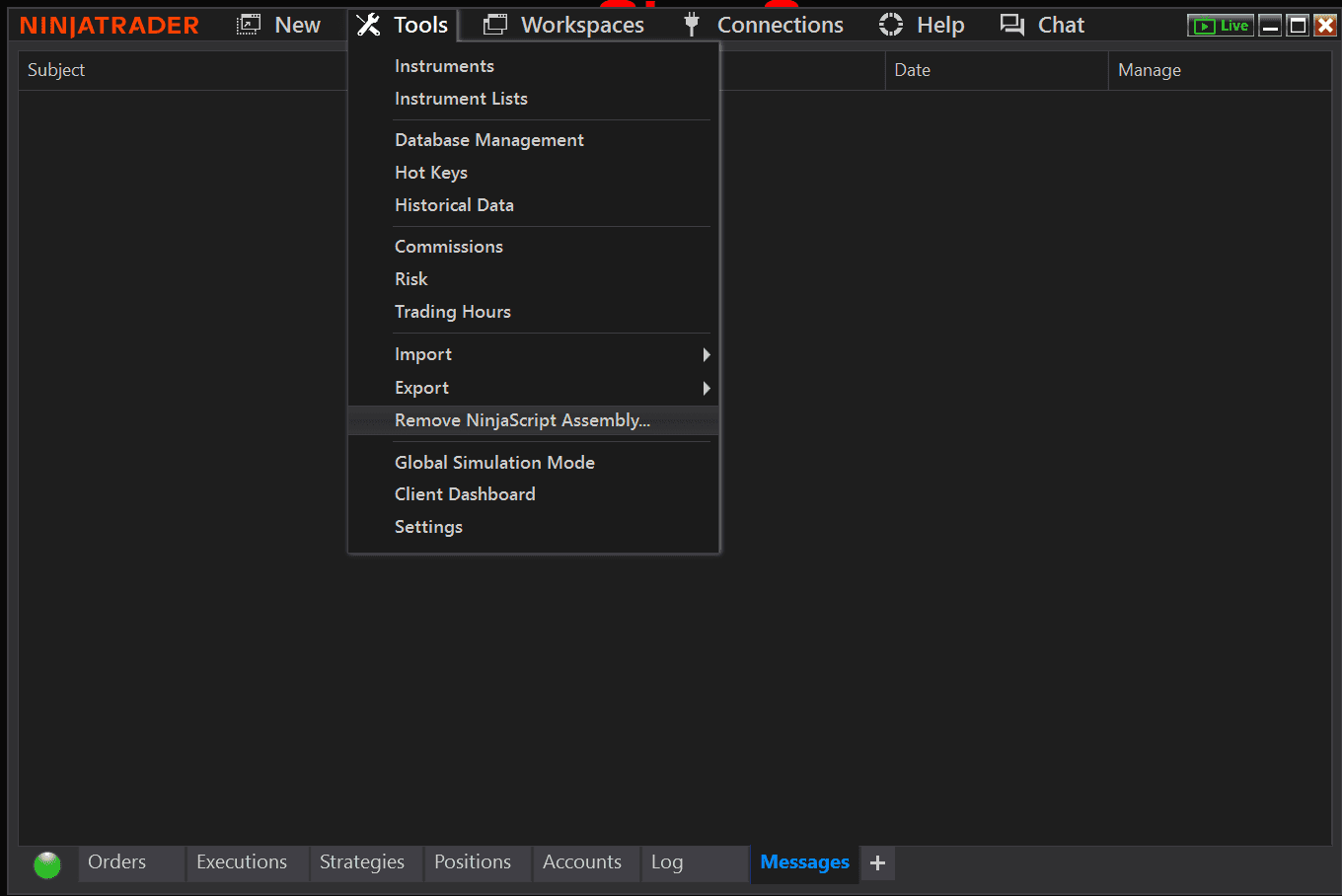
NinjaTrader Indicators panel — ScalperIQ